Page Speed Load Time Optimizations

Page Speed Load Time Optimizations

Here are a few impor­tant ways to speed up page load­ing times, togeth­er with the improved record­ed times for com­par­i­son on a typ­i­cal Word­Press web site. While Word­Press is hard­ly an opti­mized web appli­ca­tion, it does ben­e­fit from the same speedup meth­ods as most web applications.

I used Google Chrome Devel­op­er Tools to time net­work trans­fers and page load times. There are var­i­ous web-based tools avail­able as well:

Initial speed — 1.412 sec (TTFB 0.12 sec)

This was the speed on a fresh install of a Word­Press web site on a small VPS run­ning Nginx and PHP-FPM.

Enabling GZip compression — 1.326 sec (TTFB 0.13 sec)

Using com­pres­sion on net­work trans­fers can great­ly reduce file sizes, espe­cial­ly for text-based files such as HTML, CSS and JavaScript. The CPU over­head on mod­ern servers is neg­li­gi­ble, and can be cached if required.

PHP Opcode cache — 1.299 sec (TTFB 0.124 sec)

PHP scripts are typ­i­cal­ly com­piled to byte­code on demand. By caching this com­pli­ca­tion with OPcache or APC, page load times and serv­er load can be sig­nif­i­cant­ly reduced. APC did include a fast key/value cache, which has now been replaced by APCu.

WordPress Cache — 0.733 sec (TTFB 0.122 sec)

There are many Word­Press cache plu­g­ins avail­able, which reduce the amount of PHP code that has to be run on every request. Some caches can gen­er­ate flat files, which are sig­nif­i­cant­ly faster, and can be used with Nginx.

Nginx FastCGI Cache — 0.731 sec (TTFB 0.119 sec)

Nginx is able to use a fast memory/disk cache to cache requests to PHP-FPM, fur­ther reduc­ing page load times and serv­er loads. This can be very ben­e­fi­cial on web sites with high load.

There are many oth­er ways to speed up page load times, includ­ing depen­den­cy con­cate­na­tion and mini­fi­ca­tion and image opti­miza­tion. It is also impor­tant to opti­mize client-side JavaScript to allow the user’s web brows­er to dis­play con­tent quickly.

AnyCast DNS

An ini­tial vis­it to a web site requires a DNS lookup. Tra­di­tion­al­ly DNS has no way to send requests to the geo­graph­i­cal­ly clos­est serv­er, but this is pos­si­ble with Any­Cast DNS. This fea­ture is avail­able on many providers includ­ing Ama­zon’s Route 53, Google’s Cloud Plat­form and Microsoft Azure. It func­tions by allow­ing mul­ti­ple servers dis­trib­uted through­out the world to have the same IP address.

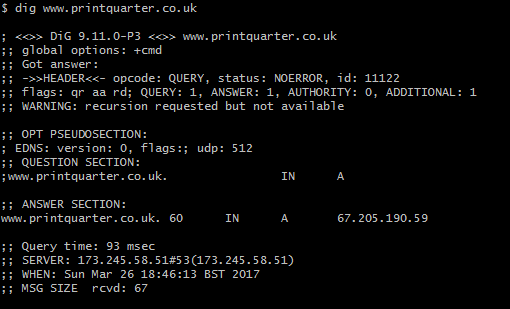
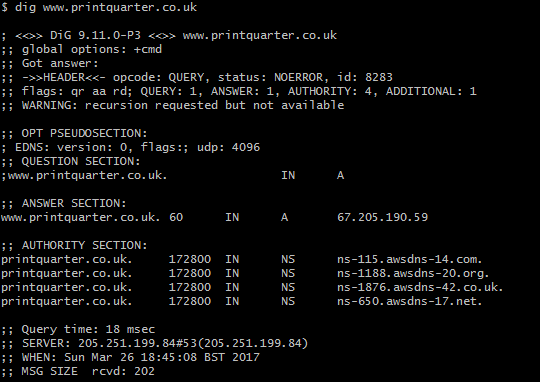
By using Any­Cast DNS, I was able to reduce an ini­tial DNS request from 93 mil­lisec­onds to 18 mil­lisec­onds. Com­bined with hav­ing an opti­mized web serv­er geo­graph­i­cal­ly close, even an ini­tial vis­it to a web page can be dis­played instantaneously.

Before Any­castDNS
After Any­castDNS

Conclusion

Sub­tract­ing the round trip time to the serv­er of 0.116 sec­onds, these opti­miza­tions reduced the effec­tive Time To First Byte to 3 mil­lisec­onds. On a busy serv­er, these opti­miza­tions will make a sig­nif­i­cant dif­fer­ence to the capac­i­ty of the server.


SSL/HTTPS Mixed Content Warnings — How to Automatically Report Errors

SSL/HTTPS Mixed Content Warnings — How to Automatically Report Errors

The gen­er­al push to use SSL/HTTPS for every web site is improv­ing secu­ri­ty and pri­va­cy on the Inter­net. How­ev­er, every request a web site makes will need to be secure, or browsers can remove the ‘Secure’ indi­ca­tor, show a warn­ing sym­bol, and some­times pop up errors.

You can add a sim­ple head­er that will tell browsers to report back to your serv­er if any inse­cure requests are made. I com­bined this with a sim­ple PHP script that logs to the server’s error log.  This alerts me to sites I host and devel­op that have inse­cure con­tent, so I can fix them.

Step 1 — Add the Content Security Policy reporting header

add_header Content-Security-Policy-Report-Only "report-uri /csp-report-endpoint.php";

Step 2 — Add PHP Script

Add this sim­ple PHP script as csp-report-endpoint.php:

<?php
error_log(file_get_contents("php://input"));

Now, when a site attempts to load an inse­cure resource, you will get a mes­sage in your error log, and you can use this infor­ma­tion to fix your site.

Improving SSL/HTTPS Security to an A+

Improving SSL/HTTPS Security to an A+

These sim­ple steps can improve your Qualys SSL Report to an A+:

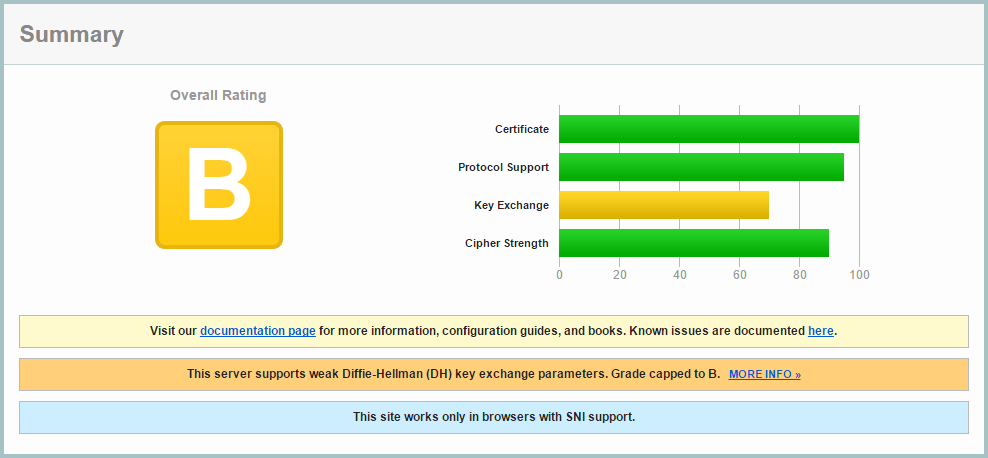
Step 1: Getting my initial report (B):

You can get a Qualys SSL Report on any site. My rat­ing start­ed as a B with a rea­son­ably good setup:

Step 2: Improving Ciphers List

SSL v2 is inse­cure, so it need­ed to be dis­abled, and SSLv3 also need­ed to be dis­abled as TLS 1.0 suf­fers a down­grade attack, allow­ing an attack­er to force SSLv3 dis­abling for­ward secre­cy. I updat­ed my nginx con­fig to use:

ssl_protocols TLSv1 TLSv1.1 TLSv1.2;

I opt­ed to con­fig­ure this in the main nginx.conf file, rather than each domain, as I saw now rea­son I would make indi­vid­ual changes on a domain basis.

I also enabled ssl_prefer_server_ciphers and ssl_session_cache:

ssl_prefer_server_ciphers on;
ssl_session_cache shared:SSL:10m;

And used this cipher suite which main­tains max­i­mum back­wards com­pat­i­bil­i­ty. Although I’m using SNI which isn’t sup­port­ed by IE6, I pre­fer my sites to be as back­wards com­pat­i­ble as possible.

ssl_ciphers "EECDH+AESGCM:EDH+AESGCM:ECDHE-RSA-AES128-GCM-SHA256:AES256+EECDH:DHE-RSA-AES128-GCM-SHA256:AES256+EDH:ECDHE-RSA-AES256-GCM-SHA384:DHE-RSA-AES256-GCM-SHA384:ECDHE-RSA-AES256-SHA384:ECDHE-RSA-AES128-SHA256:ECDHE-RSA-AES256-SHA:ECDHE-RSA-AES128-SHA:DHE-RSA-AES256-SHA256:DHE-RSA-AES128-SHA256:DHE-RSA-AES256-SHA:DHE-RSA-AES128-SHA:ECDHE-RSA-DES-CBC3-SHA:EDH-RSA-DES-CBC3-SHA:AES256-GCM-SHA384:AES128-GCM-SHA256:AES256-SHA256:AES128-SHA256:AES256-SHA:AES128-SHA:DES-CBC3-SHA:HIGH:!aNULL:!eNULL:!EXPORT:!DES:!MD5:!PSK:!RC4";

I also added these lines:

ssl_prefer_server_ciphers on;
 ssl_session_cache shared:SSL:10m;

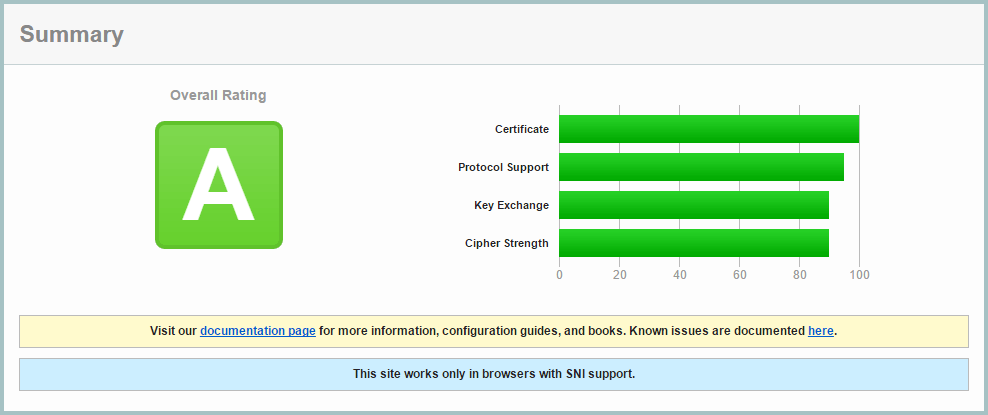
I retest­ed the site, and improved to an A rating:

Step 3: Deffie Hellman Ephemeral Parameters

Diffie-Hell­man ensures that pre-mas­ter keys can­not be inter­cept­ed by Man In The Mid­dle attacks, and it is easy to enable in Nginx.

First gen­er­ate a stronger DHE para­me­ter… be pre­pared to wait around 15 min­utes for OpenSSL to gen­er­ate this certificate:

cd /etc/ssl/certs
openssl dhparam -out dhparam.pem 4096

Then con­fig­ure Nginx to use it:

ssl_dhparam /etc/ssl/certs/dhparam.pem;

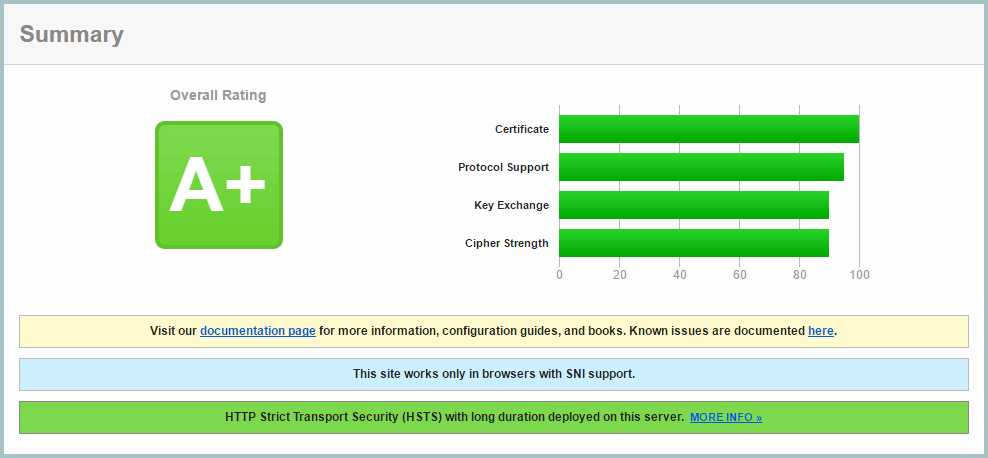
On retest­ing, I achieved the A+ grade!

Step 4: Add a DNS CAA record

The Cer­ti­fi­ca­tion Author­i­ty Autho­riza­tion (CAA) DNS record allows you to use your DNS records as a mech­a­nism to whitelist cer­tifi­cate author­i­ties that are allowed to issue cer­tifi­cates for their hostnames.

To imple­ment this, I had to change from Ama­zon AWS Route 53, to Google Cloud DNS, as AWS shame­ful­ly does­n’t pro­vide CAA report.

I use Let’s Encrypt, and added this DNS record:

0 issue "letsencrypt.org"

Cur­rent­ly this is option­al, but it will be manda­to­ry from Sep­tem­ber 2017.

Step 5: Add HTTP Strict Transport Security (HSTS) Header

A head­er can be sent from your serv­er which will inform browsers to only make HTTPS requests. Browsers will no longer make HTTP requests until the head­er expires. This has two main ben­e­fits: a spoofed site with­out your SSL cer­tifi­cate will not be effec­tive, and sub­se­quent vis­its to your site will go straight to your HTTPS ver­sion with­out a redi­rect, mak­ing page load­ing faster.

Be sure to use a low expiry time while devel­op­ing your site, as once a brows­er caches the head­er, it is not pos­si­ble to clear it. Once you’ve sent this head­er, expect your site to be HTTPS in the long term, with no going back.

add_header Strict-Transport-Security "max-age=31536000; preload" always;

For devel­op­ment, use this short­er time:

add_header Strict-Transport-Security "max-age=360;" always;

There is a push to have browsers have a pre­loaded list of HTTPS/HSTS enabled sites, but the strict require­ments for sub­mis­sion require sev­er­al sub-domain redi­rects, which in my opin­ion would reduce over­all per­for­mance. I don’t see the harm in still send­ing the ‘pre­load’ parameter.


Further reading:

JavaScript ES6 Transpiling with Webpack and Babel

JavaScript ES6 Transpiling with Webpack and Babel

Awe­some to final­ly get to use Web­pack and Babel to tran­spile some ES6 code to vanil­la JavaScript that even Inter­net Explor­er can use:

ES6:

1
2
3
4
5
6
7
8
9
10
11
export func­tion arrowTest() {
var mate­ri­als = [
‘Hydro­gen’,
‘Heli­um’,
‘Lithi­um’,
‘Beryl­li­um’
];

// expect­ed out­put: Array [8, 6, 7, 9]
return mate­ri­als.map(mate­r­i­al =&gt; mate­r­i­al.length);
}

Tran­spiled:

1
2
3
4
5
6
7
func­tion arrowTest() {
var mate­ri­als = [‘Hydro­gen’, ‘Heli­um’, ‘Lithi­um’, ‘Beryl­li­um’]; // expect­ed out­put: Array [8, 6, 7, 9]

return mate­ri­als.map(func­tion (mate­r­i­al) {
return mate­r­i­al.length;
});
}

Use­ful links: 

A Droplet for KRPano for Publishing 360 Videos

A Droplet for KRPano for Publishing 360 Videos

Here is the first ver­sion of a sim­ple droplet for con­vert­ing and pub­lish­ing 360 panoram­ic videos. It is intend­ed to be used for the processed out­put file from a Ricoh Theta S that has the stan­dard 1920x960 res­o­lu­tion. It is easy to do man­u­al­ly, but many peo­ple asked for an auto­mat­ic droplet.

It con­ve­nient­ly includes 32-bit and 64-bit ver­sions of FFMPEG for per­form­ing video conversion.

Instruc­tions:

  1. Extract to your KRPano folder.
  2. Drag your MP4 video file to the ‘MAKE PANO (VIDEO FAST) droplet’.
  3. Be patient while your video is encod­ed to var­i­ous formats.
  4. Rename the fin­ished ‘video_x’ fold­er to a name of your choice.

You can down­load the droplet here:

Recent improve­ments include:

  • Adding three vari­a­tions of qual­i­ty, which can be accessed by the view­er in Settings.
  • Improv­ing the qual­i­ty of the default play­back setting.
  • Auto­mat­i­cal­ly switch­ing to the low­est qual­i­ty when used on a mobile device.
  • Using a sin­gle .webm video, as the for­mat is very rarely used, and very time con­sum­ing to encode.
  • Out­puts to a named folder.
Removing JavaScript Debugging in Production with Laravel Elixir

Removing JavaScript Debugging in Production with Laravel Elixir

While using Gulp with Lar­avel’s Elixir, I found while it minifies/uglifies JavaScript on a pro­duc­tion build, it does­n’t strip JavaScript debug­ging. It was also far more time con­sum­ing to imple­ment this as a cus­tom Task or Extension.

Strip­ping debug­ging allows you to freely use Console.debug() and sim­i­lar debug­ging calls in devel­op­ment, which oth­er­wise will reduce the per­for­mance of your JavaScript appli­ca­tion, and in some cas­es make them com­plete­ly unus­able to cer­tain browsers.

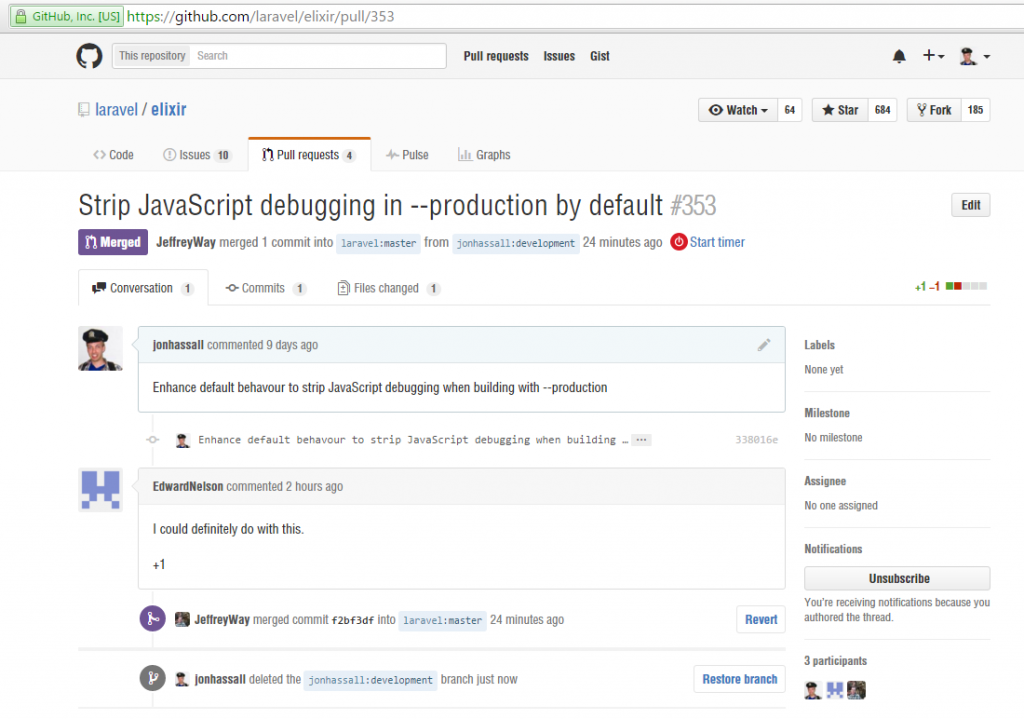
So I did it myself, and made a Pull request (Github) with the offi­cial Lar­avel Elixir repos­i­to­ry, which was approved. Nice to give back.

Github Pull Request for Laravel Elixir

Just got a thankyou

Just got a thankyou

Just got a nice email in response to some code I sub­mit­ted publicly:

“jon -

just a quick ‘thank you’ for the code you post­ed re: pars­ing csv files.

i have a gi-nor­mous excel csv file with indi­vid­ual records span­ning mul­ti­ple lines because of mul­ti-para­graph ‘notes’
fields in each record.

your solu­tion of count­ing the fields and then pars­ing sub­se­quent data based on the num­ber of columns is so com­mon sen­si­cal it makes me embar­rassed that i did­n’t think of it.

thanks again,
bruce.”