These simple steps can improve your Qualys SSL Report to an A+:
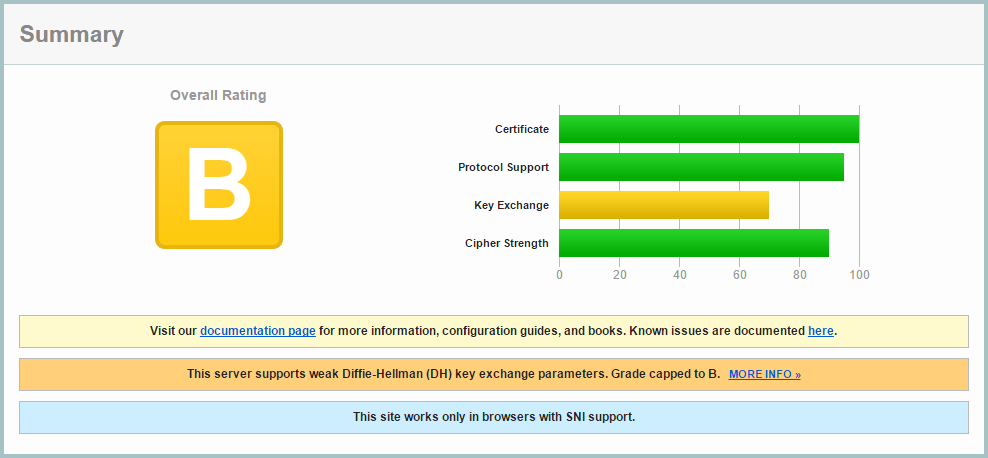
Step 1: Getting my initial report (B):
You can get a Qualys SSL Report on any site. My rating started as a B with a reasonably good setup:
Step 2: Improving Ciphers List
SSL v2 is insecure, so it needed to be disabled, and SSLv3 also needed to be disabled as TLS 1.0 suffers a downgrade attack, allowing an attacker to force SSLv3 disabling forward secrecy. I updated my nginx config to use:
ssl_protocols TLSv1 TLSv1.1 TLSv1.2;
I opted to configure this in the main nginx.conf file, rather than each domain, as I saw now reason I would make individual changes on a domain basis.
I also enabled ssl_prefer_server_ciphers and ssl_session_cache:
ssl_prefer_server_ciphers on;
ssl_session_cache shared:SSL:10m;
And used this cipher suite which maintains maximum backwards compatibility. Although I’m using SNI which isn’t supported by IE6, I prefer my sites to be as backwards compatible as possible.
ssl_ciphers "EECDH+AESGCM:EDH+AESGCM:ECDHE-RSA-AES128-GCM-SHA256:AES256+EECDH:DHE-RSA-AES128-GCM-SHA256:AES256+EDH:ECDHE-RSA-AES256-GCM-SHA384:DHE-RSA-AES256-GCM-SHA384:ECDHE-RSA-AES256-SHA384:ECDHE-RSA-AES128-SHA256:ECDHE-RSA-AES256-SHA:ECDHE-RSA-AES128-SHA:DHE-RSA-AES256-SHA256:DHE-RSA-AES128-SHA256:DHE-RSA-AES256-SHA:DHE-RSA-AES128-SHA:ECDHE-RSA-DES-CBC3-SHA:EDH-RSA-DES-CBC3-SHA:AES256-GCM-SHA384:AES128-GCM-SHA256:AES256-SHA256:AES128-SHA256:AES256-SHA:AES128-SHA:DES-CBC3-SHA:HIGH:!aNULL:!eNULL:!EXPORT:!DES:!MD5:!PSK:!RC4";
I also added these lines:
ssl_prefer_server_ciphers on;
 ssl_session_cache shared:SSL:10m;
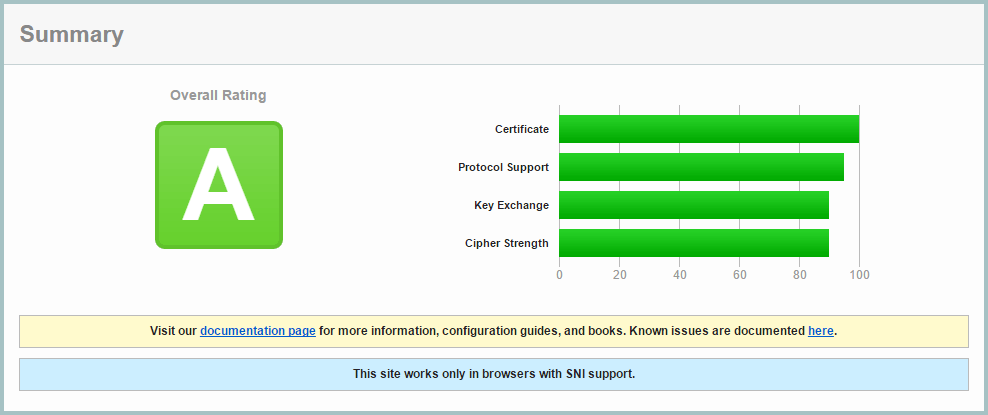
I retested the site, and improved to an A rating:
Step 3: Deffie Hellman Ephemeral Parameters
Diffie-Hellman ensures that pre-master keys cannot be intercepted by Man In The Middle attacks, and it is easy to enable in Nginx.
First generate a stronger DHE parameter… be prepared to wait around 15 minutes for OpenSSL to generate this certificate:
cd /etc/ssl/certs
openssl dhparam -out dhparam.pem 4096
Then configure Nginx to use it:
ssl_dhparam /etc/ssl/certs/dhparam.pem;
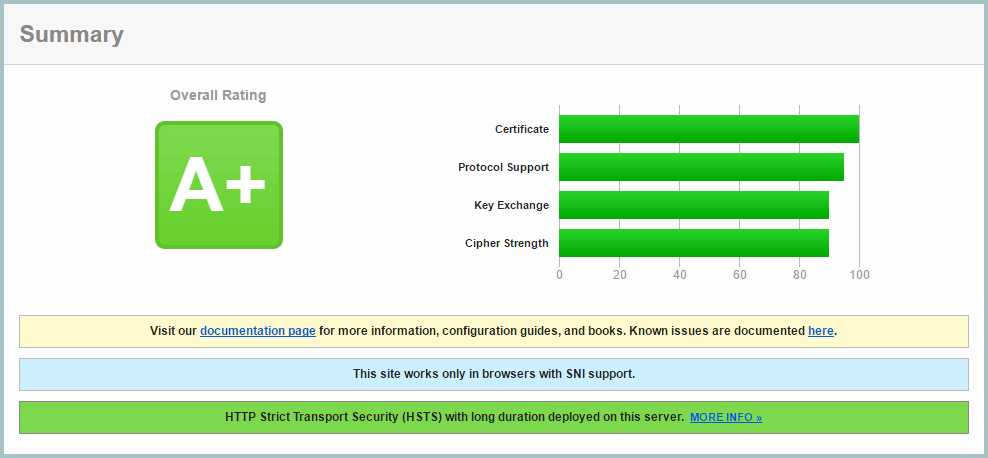
On retesting, I achieved the A+ grade!
Step 4: Add a DNS CAA record
The Certification Authority Authorization (CAA) DNS record allows you to use your DNS records as a mechanism to whitelist certificate authorities that are allowed to issue certificates for their hostnames.
To implement this, I had to change from Amazon AWS Route 53, to Google Cloud DNS, as AWS shamefully doesn’t provide CAA report.
I use Let’s Encrypt, and added this DNS record:
0 issue "letsencrypt.org"
Currently this is optional, but it will be mandatory from September 2017.
Step 5: Add HTTP Strict Transport Security (HSTS) Header
A header can be sent from your server which will inform browsers to only make HTTPS requests. Browsers will no longer make HTTP requests until the header expires. This has two main benefits: a spoofed site without your SSL certificate will not be effective, and subsequent visits to your site will go straight to your HTTPS version without a redirect, making page loading faster.
Be sure to use a low expiry time while developing your site, as once a browser caches the header, it is not possible to clear it. Once you’ve sent this header, expect your site to be HTTPS in the long term, with no going back.
add_header Strict-Transport-Security "max-age=31536000; preload" always;
For development, use this shorter time:
add_header Strict-Transport-Security "max-age=360;" always;
There is a push to have browsers have a preloaded list of HTTPS/HSTS enabled sites, but the strict requirements for submission require several sub-domain redirects, which in my opinion would reduce overall performance. I don’t see the harm in still sending the ‘preload’ parameter.